
How do I add an admin for my group?
1. Go to our testing platform.
Open up a new tab and navigate to:
https://tests.5qcentral.com/
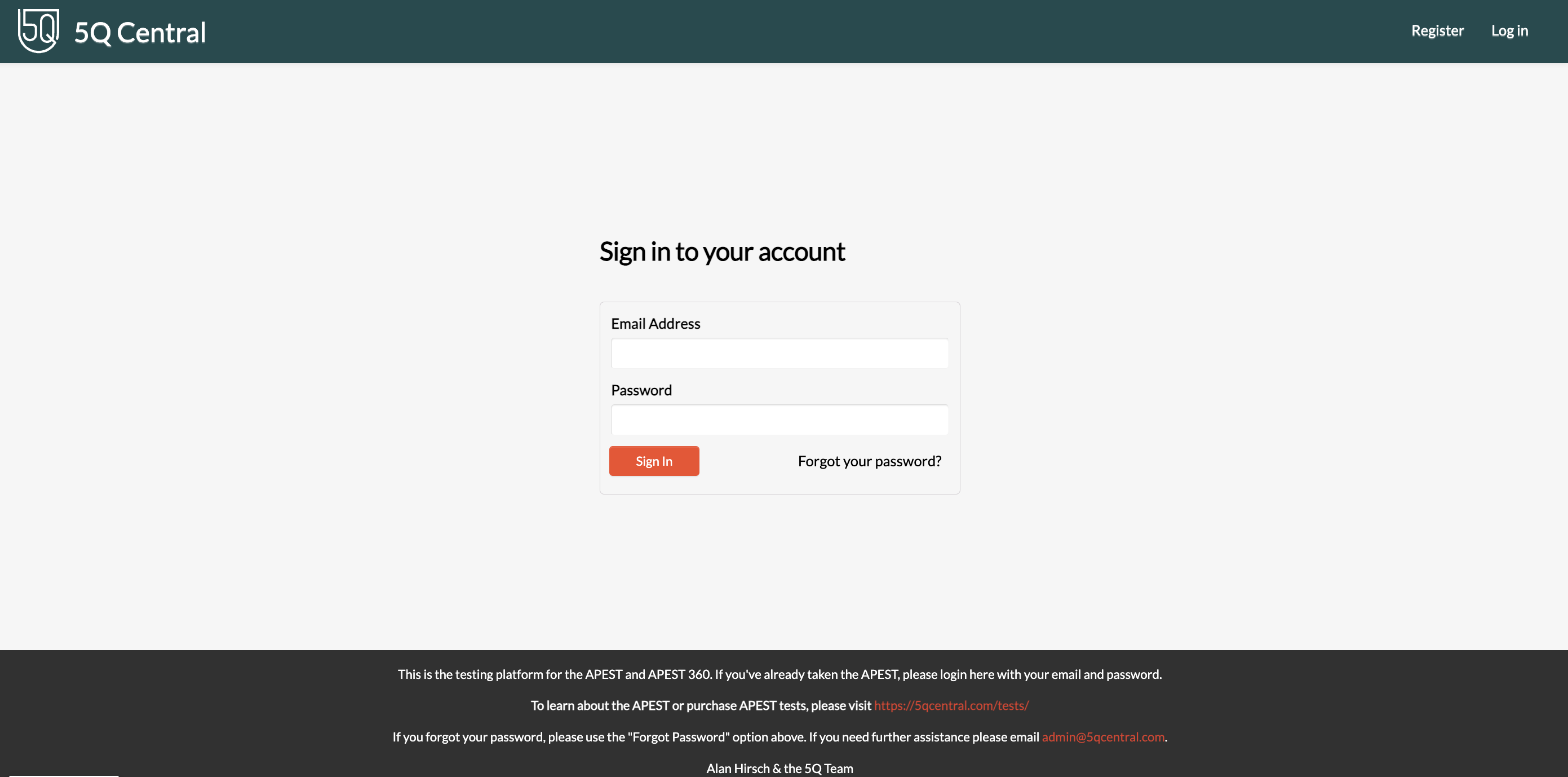
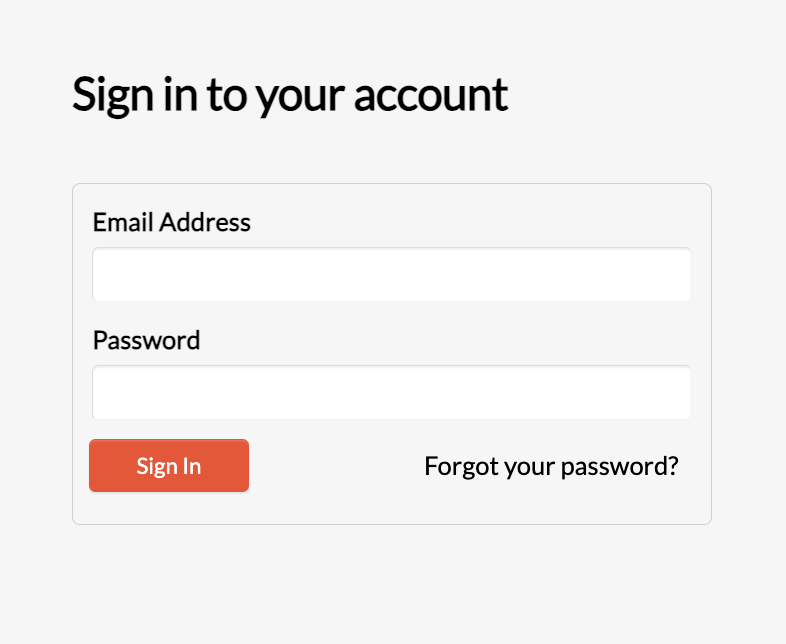
2. Login with your email address & password.
Use the email address that you used to purchase your assessment or that you received an invitation with.
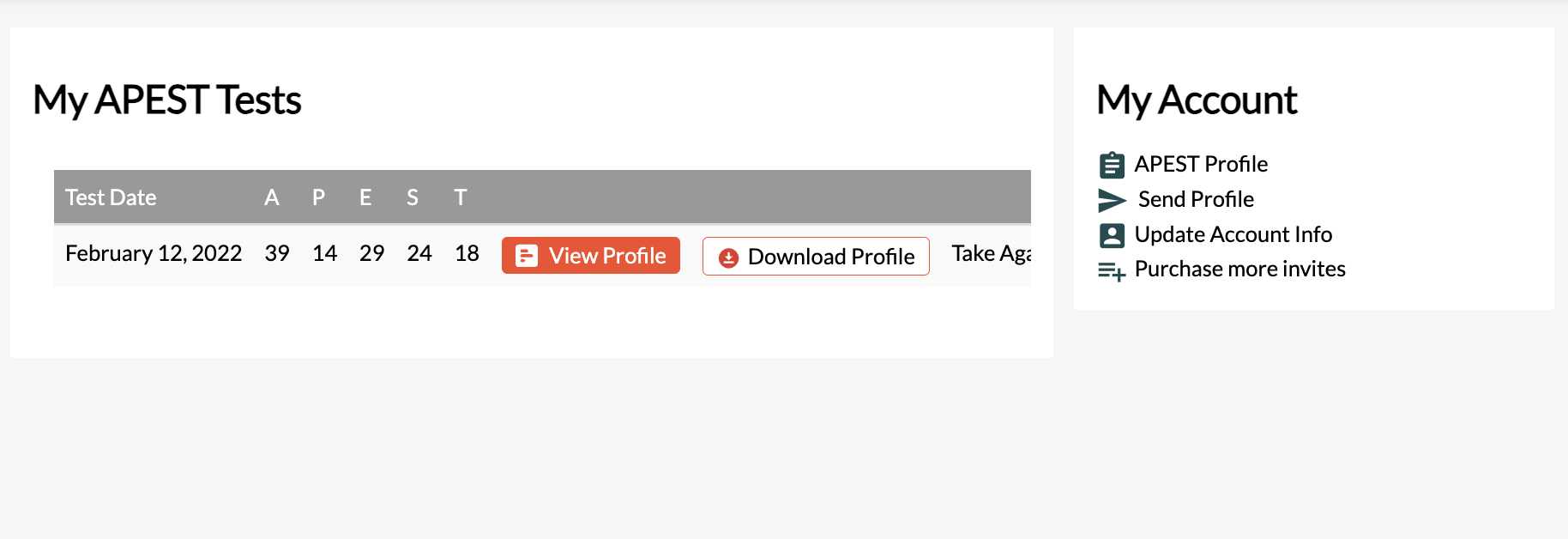
3. Navigate your dashboard.
Take your assessment, view your results, update your account information like your email address and password.
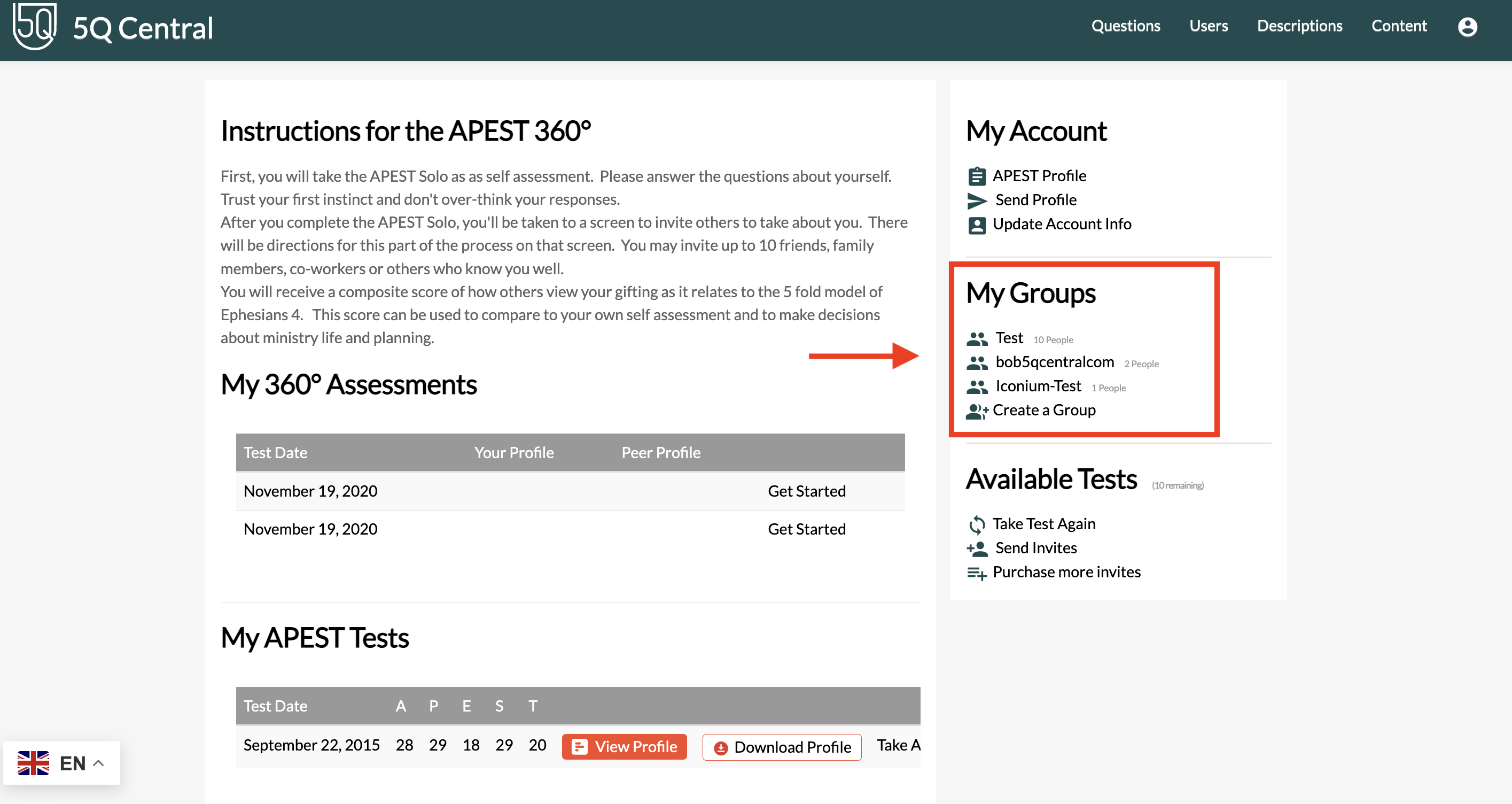
4. Navigate the group you would like to add an admin to.
On the right-hand side of your dashboard, you will see any groups you have created. If you don't see a group, you can create one by following the instructions for Option 1 on this page here:
How To: Create A Group5. From the Group Panel click on 'Admin'
The person you want to set as an admin has taken the test. In the group panel, if not, you will need to invite them to take the test from the group panel in order for them to be an admin.
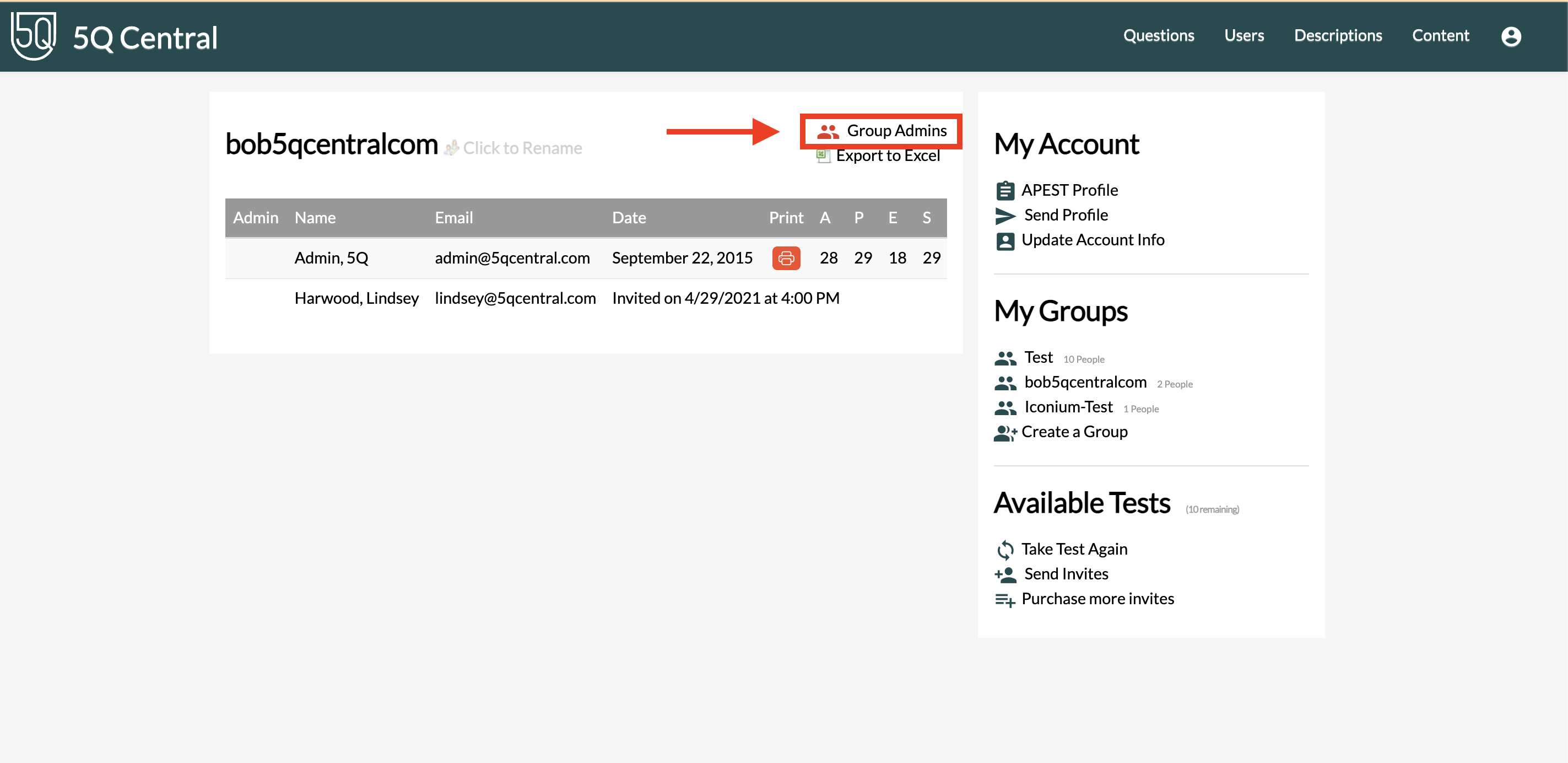
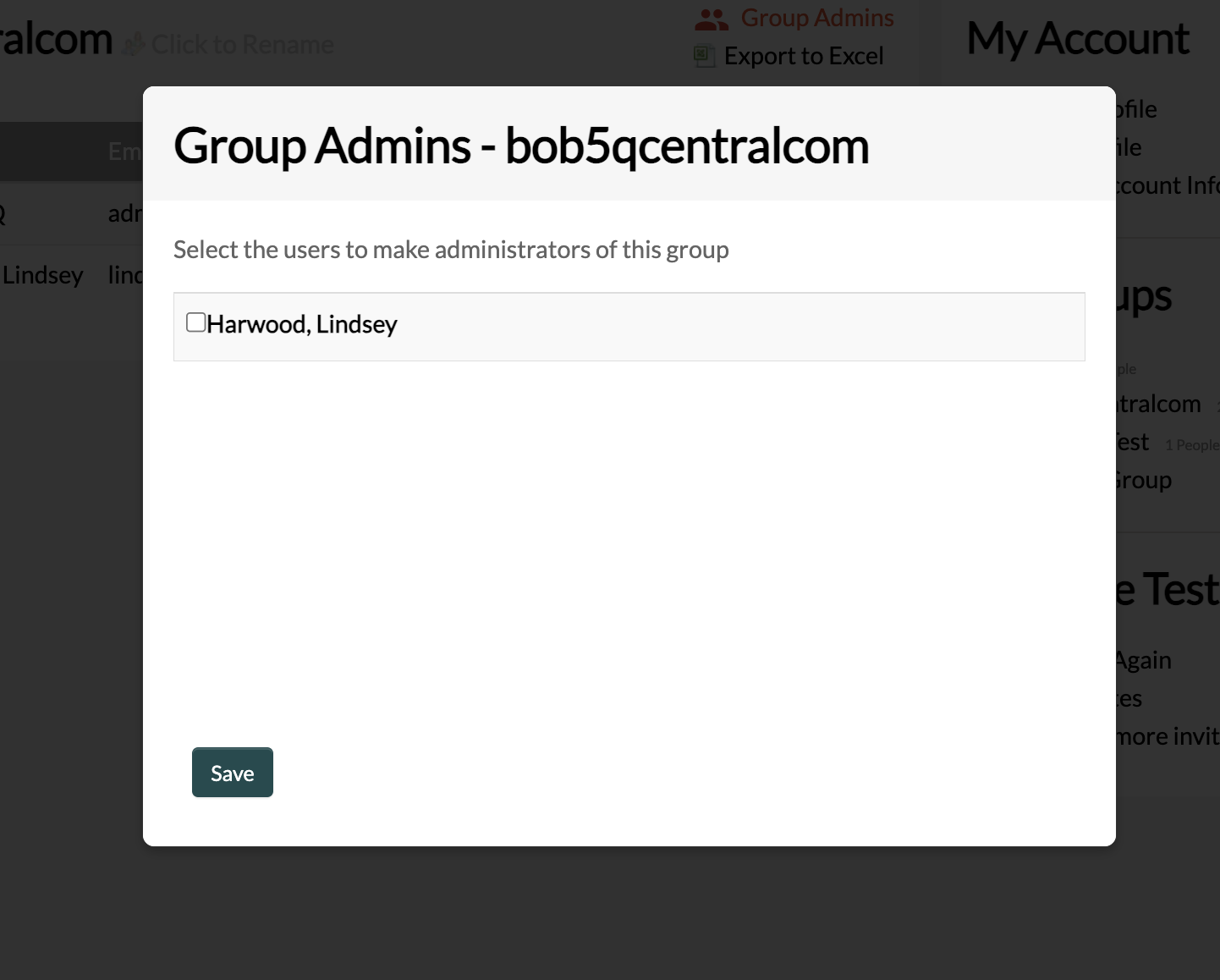
6. Select the person you would like to add as an Admin
A modal will appear listing all members of the group. Check the checkbox next to the person you would like to make an admin, then click Save.